
STEP-BY-STEP GUIDE
Build a small project tracker with Base44
Build a small Base44 project tracker with an original starter prompt, real documentation screenshots, practical tests, and permission checks.
Build a practice tracker with three actions: add a project, change its status, and delete a test entry. This walkthrough follows Base44's documented controls. The example prompt is our own teaching exercise; the screenshots come from Base44's documentation and show its examples, not a project we built.
Based on official documentation, not a hands-on product review. Screenshots are attributed vendor examples. Interfaces and plan limits may change.
1. Define the first version
Start a new app and describe the outcome. Try this original prompt:
Create a project tracker for a freelancer. Require users to sign in. Let each user create projects with a title, client label, due date, and status: Planned, Active, or Done. Show the projects in a simple list. Let users edit and delete only their own projects. Start with an empty state that explains how to add a project. Use a layout that is easy to read on a phone. Do not add payments, email sending, or external integrations.
Keep real client details out of the exercise. Base44's advice is to state the audience and main actions clearly, then refine in small steps.
2. Try the main task in Preview
After generation, open Preview and create a project named “Practice brochure.” Change its status, refresh, and confirm what remains. Try a missing title and a long title. On a phone-sized view, check whether the form and action buttons remain usable. Record what fails before asking for a fix.

3. Make one improvement
Ask: “Add a filter above the project list for All, Planned, Active, and Done. Keep the existing fields and permissions.” Repeat the original checks afterward. Changing a screen can affect a journey that already worked, so keep your checklist short enough to repeat.
4. Check the records as two users
Review the app's sign-in and visibility settings. In Dashboard, open the relevant table under Data and inspect Permissions. Confirm that the intended read, update, and delete rules restrict a person's projects appropriately. Base44 documents Creator Only for personal records. Test with separate identities instead of assuming a hidden button proves that access is restricted.
If your plan includes Test Data, enable it in Dashboard → Settings → App Settings and turn on test data in Preview. Base44 says this feature needs Builder or above; the published app still uses production data. If you do not have it, keep this exercise in a separate practice app containing only invented records.
5. Review the publishing panel
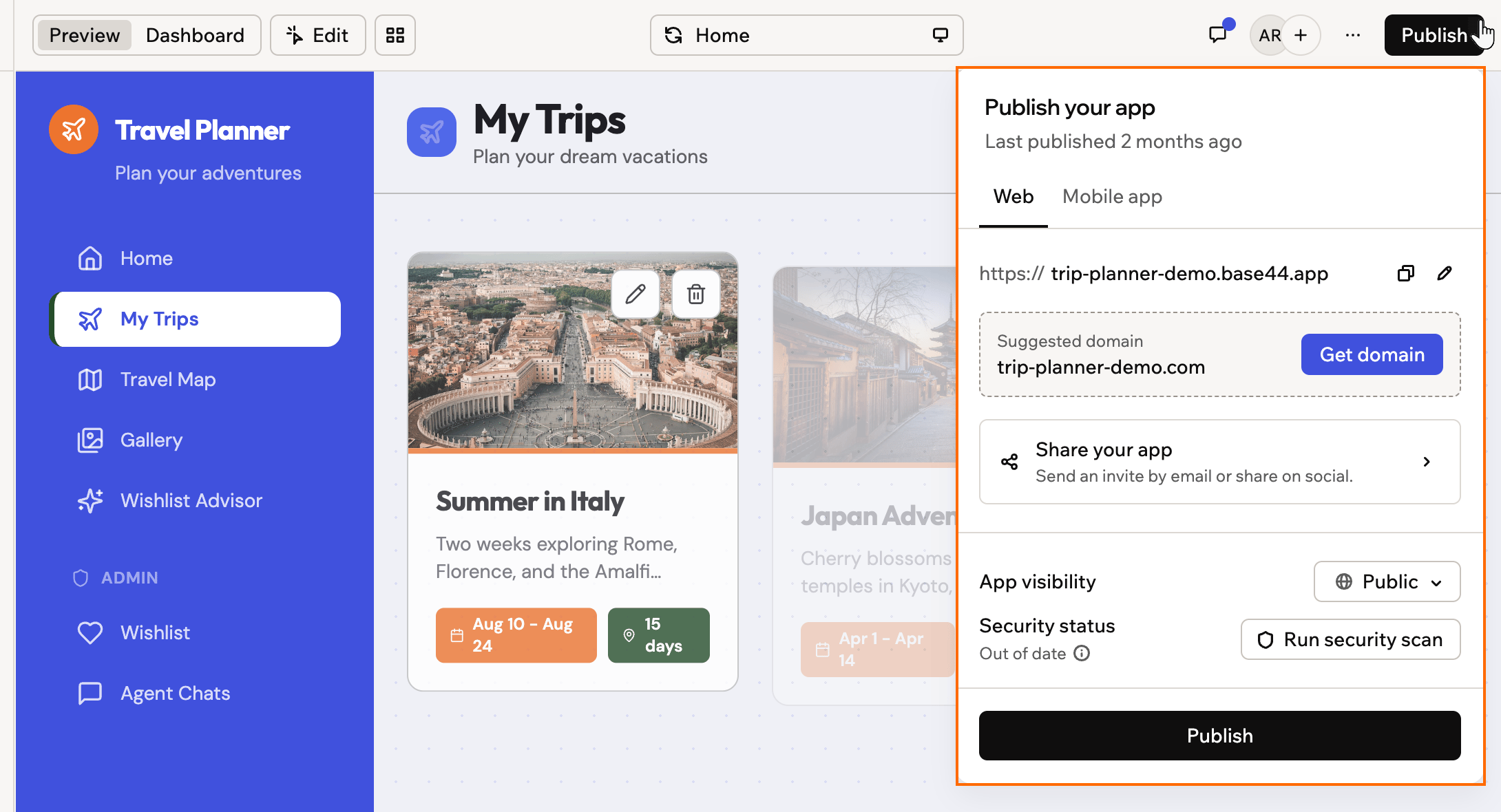
Open Publish when you are ready. Check the app address, App visibility, and Security status before publishing the latest changes. Review any scan findings and repeat your two-user check. Then start with a small test audience and collect specific feedback.
Your first milestone is simple: a person can add and update their own project, return later, and see the right information. Add reminders or integrations only after that journey works reliably.
Questions before you start
Are these screenshots of an app Hype or Handy built?
No. They are factual screenshots from Base44's official documentation, with captions identifying the vendor's sample apps. The project-tracker prompt is our teaching exercise.
Should I use real client data while following this tutorial?
Start with invented records. Verify the complete workflow and each user's access before using real business information.
Sources and review notes
Provider documentation checked September 17, 2026. Our fit recommendations and practice tasks are editorial guidance; they are not endorsements by the providers or guarantees of results.