
TOOL OVERVIEW
Adalo explained: visual screens connected to real app data
Understand Adalo's screens, collections, forms and actions, plus the publishing and permissions checks that matter for a first app.
Adalo is a visual app builder for connecting screens, stored information and user actions. It is worth exploring when your idea needs more than a set of informational pages: people might browse a directory, open a record, submit information or manage their own entries.
Our research-based view is that Adalo suits a builder who wants to understand and configure those connections. You can avoid writing the application in code, while still making deliberate decisions about data, navigation and access.
Based on official documentation, not a hands-on product review. Screenshots are attributed vendor examples. Interfaces and plan limits may change.
Choose the screen sizes you need
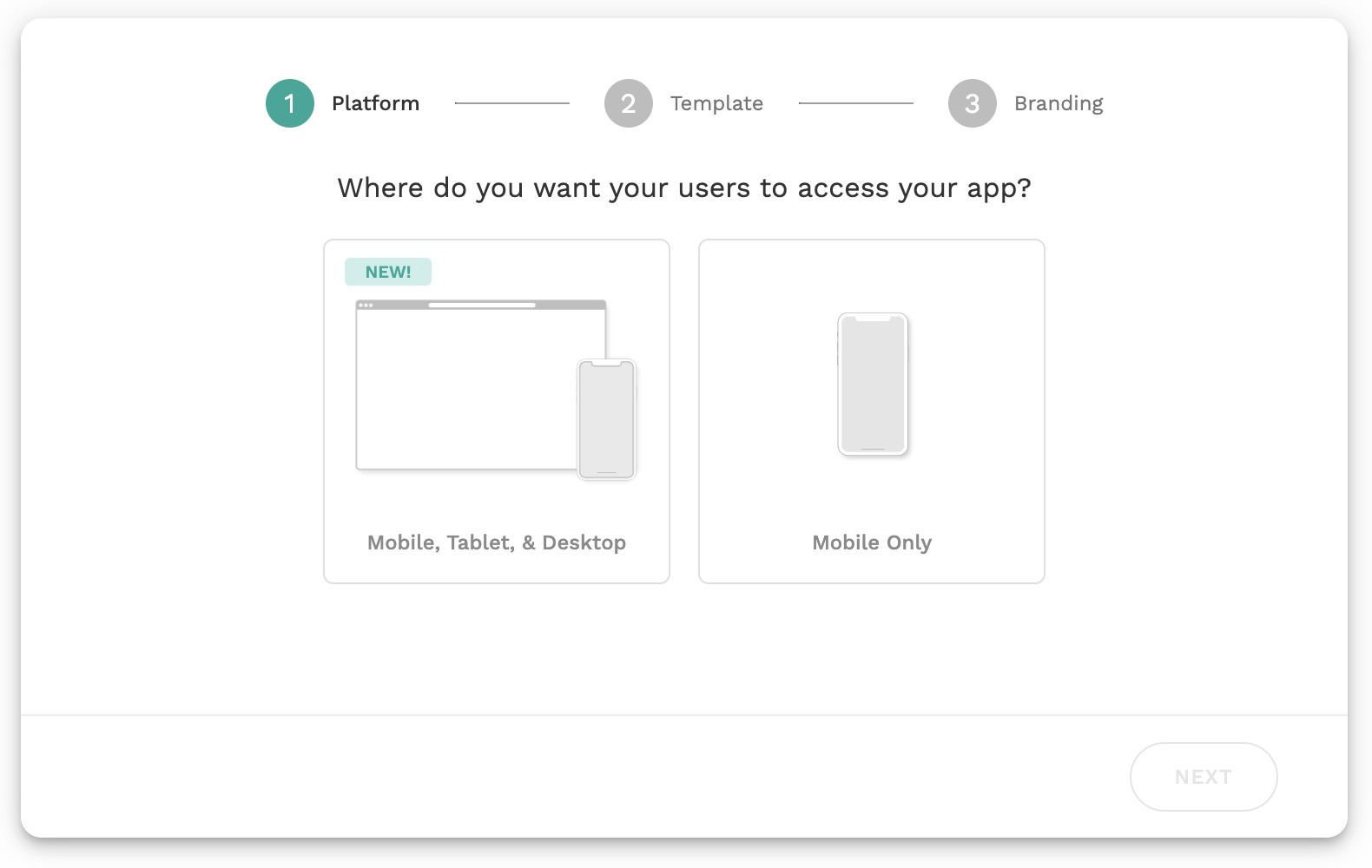
Adalo's documented setup supports mobile-only and responsive layouts for mobile, tablet and desktop. You can begin from a template or a blank app, then set a name and branding. This provides a starting structure, but you still need to check how your content behaves on the devices your audience uses.
For a first project, pick one principal use case. A member browsing a resource directory on a phone gives you a much clearer design target than trying to serve every possible screen and workflow immediately.
The database is part of the build
Adalo organizes stored information into collections, properties and records. For a resource directory, Resources could be a collection; Title and Summary could be properties; each listed resource would be a record. Relationships connect records across collections when your workflow needs them.
The advantage of learning these terms is practical: you can distinguish a label drawn on a screen from information stored in the app. That distinction becomes essential when different users or records should display different content.
Connect the interface to the information
Lists display records from a selected collection. Forms can create or edit records. Link actions connect buttons and list items to other screens or external destinations. Together, those features can support a browse, open and submit workflow.
Build one complete example before repeating it across the app. If opening a resource shows the correct title and summary, you have evidence that the list and detail screen are connected properly. Repeating a disconnected design only creates more repair work.
Check access before sharing
Adalo distinguishes database permissions from the visibility of interface components. Hiding an edit button is a design choice; restricting who can change the record is a separate database rule. Review both when the app includes private information or user submissions.
Use fictional sample records while learning. Decide who should view, create and change each type of information, then test those roles. A member directory and a public resource list may look alike but need different access rules.
Who should shortlist Adalo
Consider Adalo for a focused app whose main value comes from displaying and updating structured information. Start with a few records, a list, a detail screen and one working action. Then inspect the current publishing plans and requirements for web, iOS or Android. A successful editor preview is a milestone, while production release has additional steps.
Questions before you start
Do I need to understand databases?
You do not need to write database code for the documented built-in workflow, but understanding collections, properties and relationships will make your app easier to configure correctly.
Can an app target the web and mobile stores?
Adalo documents web, iOS and Android publishing. Check the current plan and each platform's release requirements before choosing a distribution route.
Sources and review notes
Provider documentation checked September 17, 2026. Our fit recommendations and practice tasks are editorial guidance; they are not endorsements by the providers or guarantees of results.