
STEP-BY-STEP GUIDE
How to set up a small team in Bolt Business
Prepare billing, create a group and travel policy, invite employees and verify the first reporting cycle in Bolt Business.
A useful Bolt Business rollout starts with a small team, clear travel rules and a known finance contact. This documentation-based guide walks through the administrative setup. Confirm coverage for the team's locations before beginning.
Have the company's registration and invoice details ready, along with the account administrator and the employees approved for the pilot. Use the current portal guidance for your market when a label or billing option differs.
Based on official documentation, not a hands-on product review. Screenshots are attributed vendor examples. Interfaces and plan limits may change.
1. Confirm the account and billing arrangement
Bolt's registration guidance asks for company and administrator details, an invoice address and email, and relevant registration information. The administrator then selects an available payment arrangement. Postpaid billing is subject to Bolt's review.
Decide whether the business needs company-pay or employee-pay. Company-pay covers ride costs centrally; employee-pay leaves employees using their own cards and the company's reimbursement process. If you need employee-pay, contact Bolt through the portal for activation.
2. Create a group for the pilot team
In Groups, choose Add group and give it a recognizable name, such as Field Team Pilot. Use the description to record the purpose. Organize people by shared travel requirements, so the rules remain easy to explain and maintain.
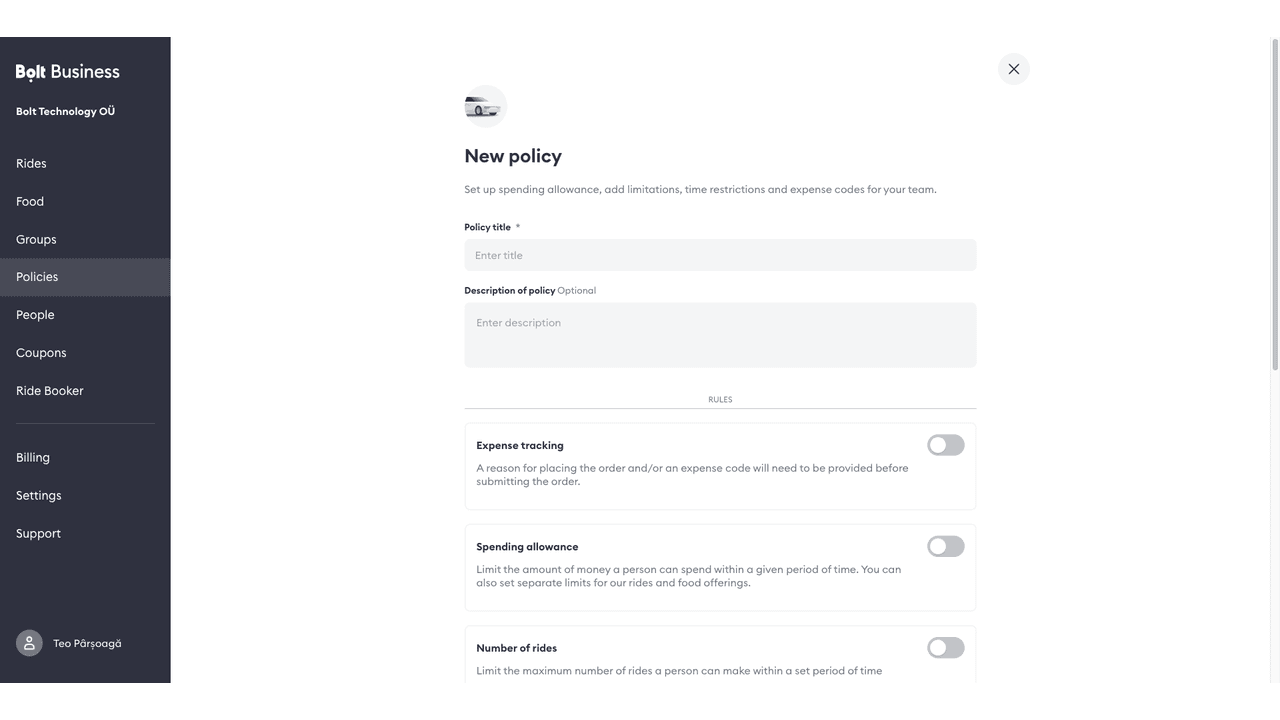
3. Create and attach a travel policy
In Policies, choose Add a policy. Name it clearly and configure the controls your team needs, such as allowed travel times, spending allowance and expense tracking. Use an approved internal budget rather than an arbitrary limit.
Return to the group, select the policy in its Policy dropdown and save. Check the group afterward to confirm the association. Review Ride Booker separately because Bolt says group policies do not apply to those trips.
4. Add employees and check their status
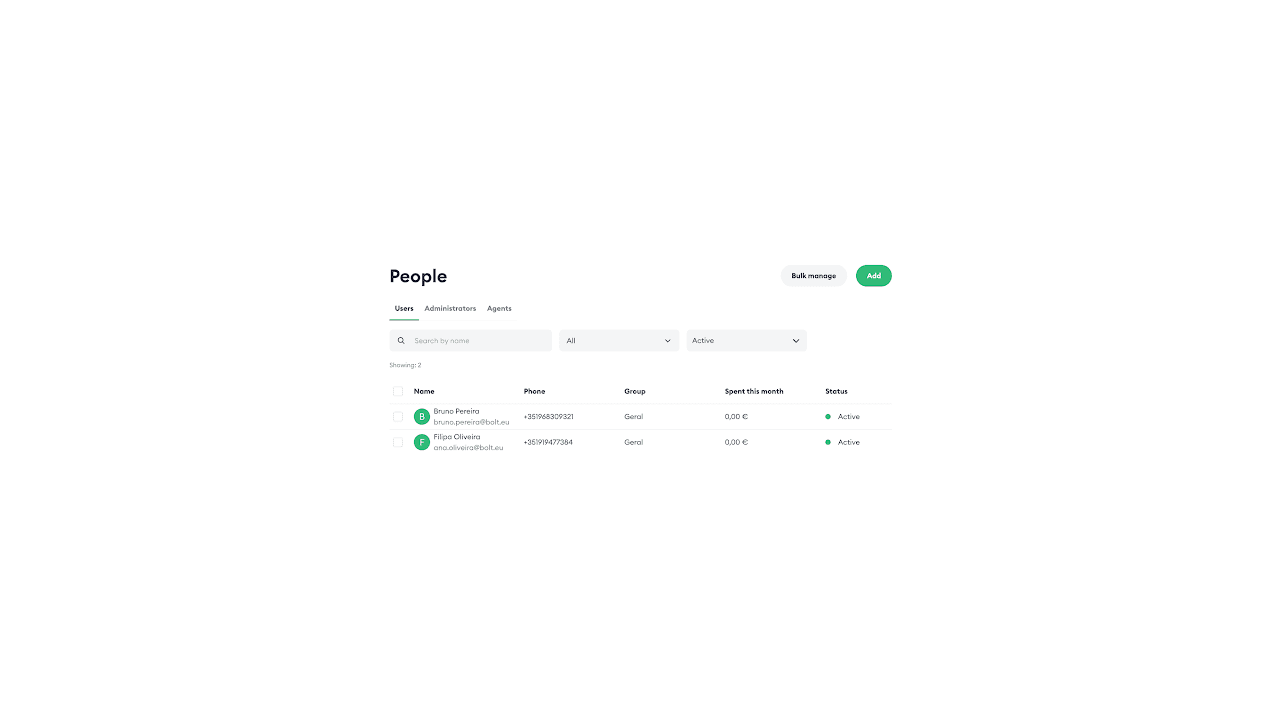
Open People, then Users and Add. Bolt supports individual entry, email invitations and spreadsheet import. For the first few employees, individual invitations make it easier to verify the setup. Assign each person to the pilot group.
Use the phone number connected to the employee's Bolt account, including the correct country prefix. Review activation status rather than assuming an invitation is complete. On employee-pay accounts, No payment method means the employee still needs to add a valid card.
5. Review the first real reporting cycle
Give employees a short explanation of permitted travel and the payment arrangement. After an authorized work ride occurs, use Rides to filter by the pilot group or employee and inspect the record. The reporting guide describes downloading individual receipts and CSV or XLSX reports.
Ask finance to confirm that the record includes the information needed for reconciliation. Resolve missing details and policy misunderstandings before adding the rest of the company. A successful pilot should demonstrate usable travel access and usable accounting records.
Questions before you start
An employee cannot see the business payment option. What should I check?
Check activation status, group and policy assignment, and that the portal phone number matches the employee's Bolt account. On employee-pay, also check whether the employee has added a card.
Should I import the whole company at once?
A small pilot makes it easier to verify account details, travel rules and reporting before expanding the rollout.
Sources and review notes
Provider documentation checked September 17, 2026. Our fit recommendations and practice tasks are editorial guidance; they are not endorsements by the providers or guarantees of results.